

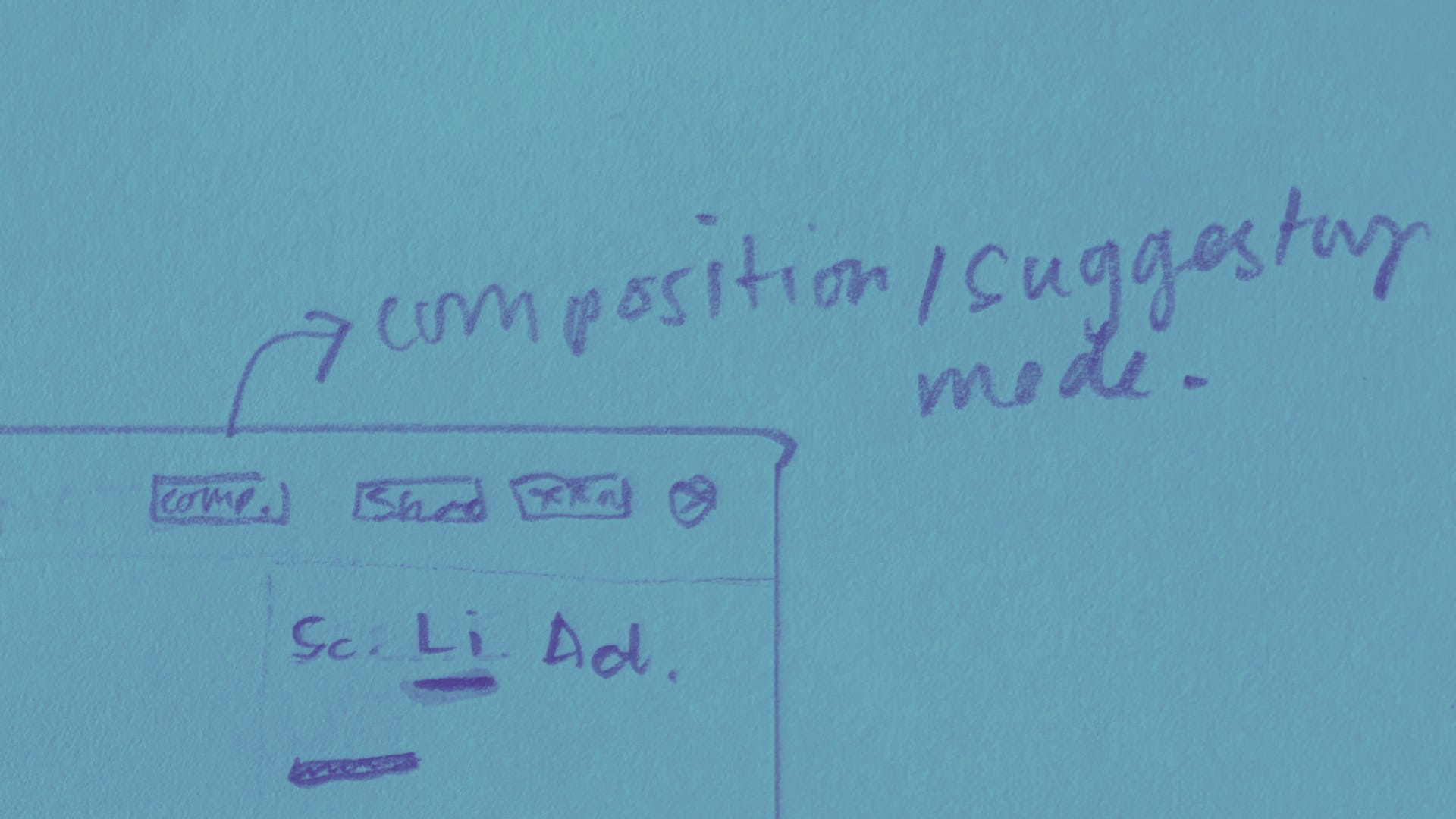
This is part of a series where I deep-dive into my favourite First Draft Pro features and how they were designed, because I love understanding the story behind a thing, and you might too! If you’d like to give your own feedback on this or any other feature (I love feedback, especially yours) you can do that here.
This is a deep-dive into the design of tracked changes. I know track changes seems like a kind of table stakes feature for a writing app, and not one worth writing a whole article about, but let me cook.
Every writer who’s ever worked with an editor, or a beta reader, or even just with a past version of themselves, has first-hand experience of the headache of editing a manuscript. Assuming you’re working with someone else, that probably also means emailing documents back and forth like philistines, then trawling through different versions to compare feedback and edits, while also trying to work out if the latest draft was “final” or “final_FINAL_v2_this-one_okay-no-THIS-ONE”.
Part of the idea of building First Draft Pro was changing this forever and ever. The whole point of a collaborative writing app that acts as a shared source of truth and can have different permission levels for co-writers vs an editor/book coach, is removing that pain. But, that requires really good tools for getting feedback, reviewing and vetting it, and then deciding what changes to take on, and what to reject.
Some of this is managed with comments, and that deserves an article of it’s own, but a lot of this happens via tracked changes!
Core design concepts
Design is about form and function, and research is super important! These concepts shaped my approach to designing the track changes feature:
The project owner must have ultimate control over access, permissions, and collaborators can only suggest changes, never make changes without approval.
It’s important that change notifications are always accessible, but that you don’t have to look at them all the time (they stay on an activity tab) so that you avoid fixating/negativity bias, and can choose when to engage.
How tracking changes works
Toggle suggestion mode ‘on’ and ‘off’ to switch between direct editing of your manuscript, or suggesting changes to text or formatting.
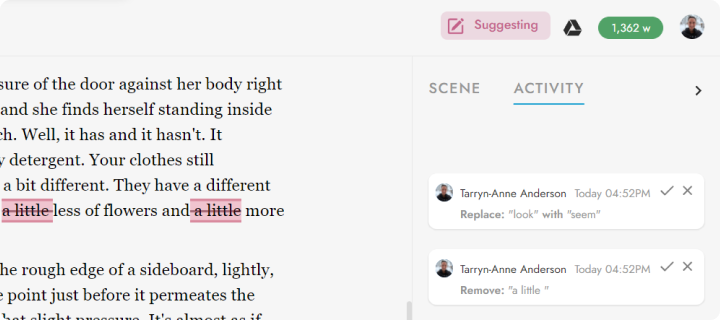
With suggestion mode on, suggested changes will appear as notes on the right-hand side of your manuscript. This is perfect for working with co-authors and editors – or even if you have another idea that you’d like to come back to. When you’re ready, accept or reject suggestions by clicking the tick or cross icon.
Compare versions
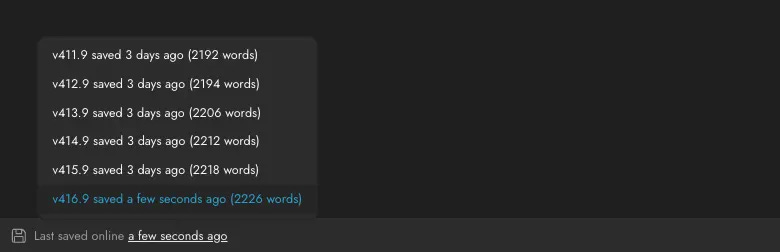
No one likes to kill their darlings, but version control in First Draft Pro makes it easier to commit to changes, safe in the knowledge that your original version is never lost! Editing always involves a bit of rewriting – but being able to track suggestions, and easily roll back to previous versions, allows you to let go and embrace change.
Plus, the version history tracks each scene individually, so if you need to roll back a scene without affecting other changes, that’s possible!
Gather feedback in one place
All step-by-step edits made by you or your collaborators are visible alongside longer, inline comments on your manuscript, making it simple to collate and integrate changes.
🖤 And to reward you for getting to the end of my big nerd out :) here’s a discount code for 30% off any First Draft Pro subscription for 12 months: DESIGNDEEPDIVES